MFA User Guides and Frequently Asked Questions
Single Sign-On (SSO) and Multi-Factor Authentication (MFA)
What is Single Sign-On?
- Single Sign-On (SSO) is an authentication method that enables users to securely authenticate to multiple applications and websites using just one set of credentials.
- Removes the need of having to remember and enter multiple user names and passwords for separate applications, and eliminates the frustration of having to reset forgotten passwords for each.
- When SSO is utilised, users can access a range of CFA supported apps and web sites and apps without having to log in each time, if any other existing application sessions are already connected on the same browser.
What is Multi-Factor Authentication?
- Multi-Factor Authentication (MFA) is one method that greatly reduces the ability of cyber-criminals from accessing your account and information.
- It increases your user account security by requiring two or more authentication factors of verification to prove you are who you say you are when signing into an application. These are usually:
- Something you know (typically a password)
- Something you have (a trusted device such as a mobile phone)
- Something you are (biometrics such as a fingerprint)
- This means that an extra verification step is mandatory to make sure that you are who you say you are when attempting to connect via any CFA supported application via SSO.
What is changing?
As part of CFA’s commitment to improve member experience when accessing CFA’s digital platforms such as Members Online and other CFA applications, we are changing the way CFA members sign on to applications via Single-Sign On (SSO) and Multi-Factor Authentication (MFA).
From 8th July 2026, CFA is consolidating all SSO and MFA verification services to a single Microsoft security platform, to improve the overall sign-in experience for all CFA members.
Included among the benefits for CFA members will be:
- Signing in to CFA supported application and web services will be simpler and consistent on one standard platform.
- Re-prompts to sign-in will be less frequent with session timeouts being extended to improve usability.
- One login, many places. Once you are signed in, when you move between CFA's Member Online applications, there will be fewer MFA prompts to access applications for a more seamless experience.
Why are we changing?
As part of CFA’s ongoing and constant service reviews, we are looking to get more value from our currently agreed licences and as such we are consolidating onto a single, integrated Microsoft identity and security platform.
- Many of our current applications, collaboration tools, and security infrastructure services are Microsoft-based.
- User Account Identity and Authentication should be no different.
- We are getting more value from the licensing we already hold, as Microsoft Entra ID is included in CFA's existing Microsoft licensing and capable of delivering our requirements.
- The wider Victorian Government and agencies are also consolidating onto these same services, so more synergies and closer integrations may be realised in the future.
How will these changes impact members?
For most Members, there will be little to no impact to these SSO and MFA changes.
- If you currently receive SMS messages for MFA then you will continue to do so.
- This will be the Default MFA authentication method on your account, and there is no action that you need to take.
- The only visible change will be that the SMS sender name will change to being sent from Microsoft.
- If you have already registered an additional Authentication App method in Okta, and you wish to continue to do so in Entra ID, then you will need to re-register. (note that Okta Verify will no longer be supported)
- Even if you are happy with the default of SMS, you may of course decide to register any additional authentication methods at a time that suits to provide more secure coverage.
For a small number of Members, who have registered and use a third-party authentication App in Okta as their default authentication method.
- Mobile SMS will be the Default MFA authentication method on your account, and there is no action that you need to take.
- To continue to use your current default third-party Authentication App then you will need to re-register it on Entra ID. (note that Okta Verify will no longer be supported).
- The use of the Microsoft Authenticator is the recommended method for the use of a device based authentication app.
- If you have no methods registered since MFA was introduced, or you are a newly activated member, you will be prompted to register the first time you attempt to connect to any CFA supported services.
For Staff:
- Most staff have at least one authenticated methods registered on Entra ID already. You can continue to use this with no changes or impact to usage.
- The use of the Microsoft Authenticator is the recommended method for the use of a device based authentication app.
- If you have no methods registered, or are a new staff member, you will be prompted the first time you attempt to connect to any CFA supported services.
- The use of Windows Hello for Business PIN, is the most secure method for business laptops and provides the most seamless, password-less authentication method for all CFA MFA requirements.
What do the changes in the SSO and MFA process look like?
The main changes will be that the CFA branding on the SSO and MFA logon dialogs will be updated visually, as per Microsoft Entra ID service standards, and will have a consistent flow.
Current Sign-On Process for Members Online via Okta:
1. Initial user
Sign In dialog via Okta.
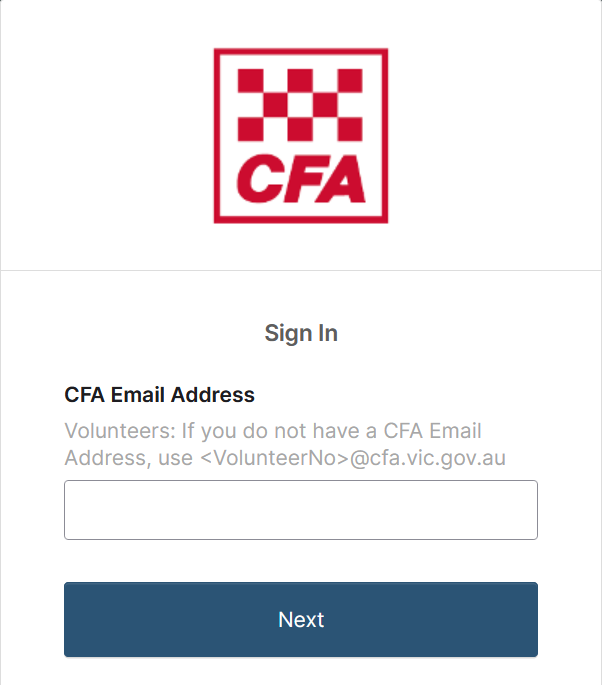
2. Enter your username or email address as prompted.
3. Click on the
Next button.
4. You will then be redirected to the Okta
Verify with your Password dialog.
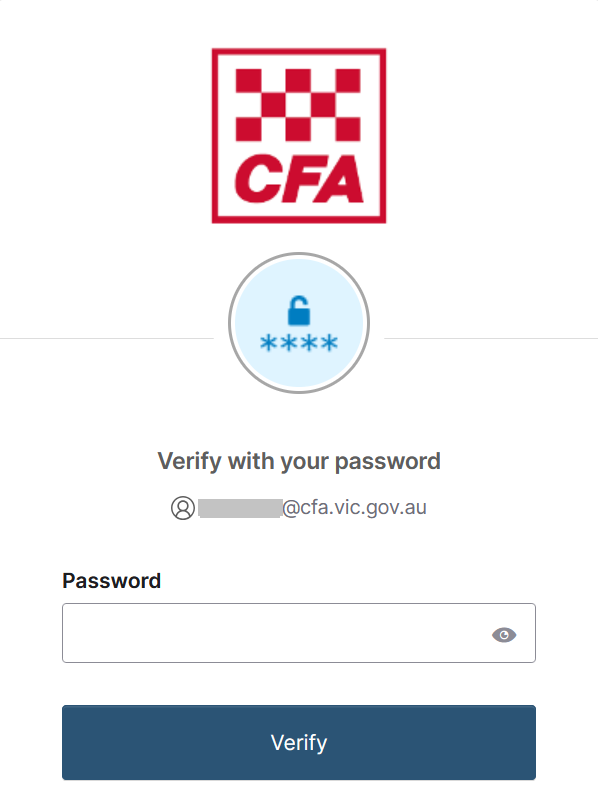
5. Enter your current password for your user account
6. When complete click on the
Verify button.
7. Once the credentials have been verified you will be redirected to the Okta
Verify with your phone dialog for MFA enforcement.
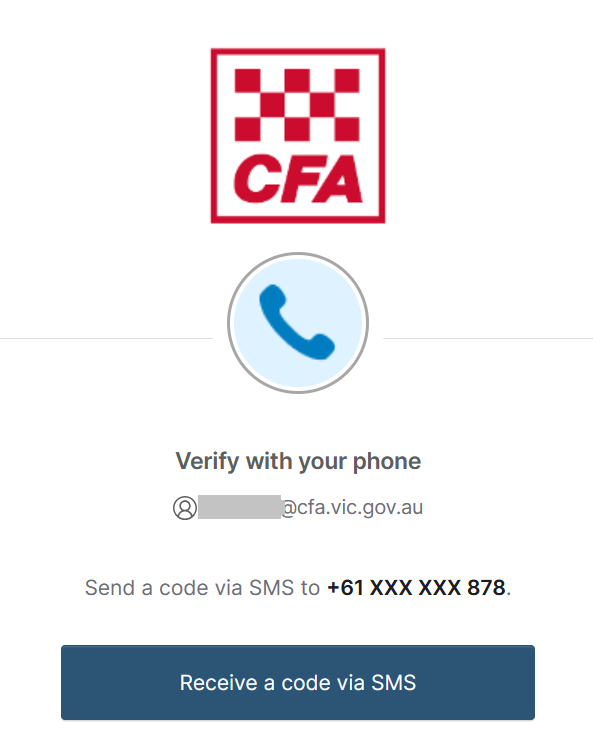
8. Complete the MFA authentication as prompted.
9. Once you have completed the MFA verification, you will be redirect to the application that you attempted to connect to initially and it will be automatically logged on as expected.
New Sign-On Process for Members Online via Entra ID:
1. Initial user
Sign In dialog via Entra ID.
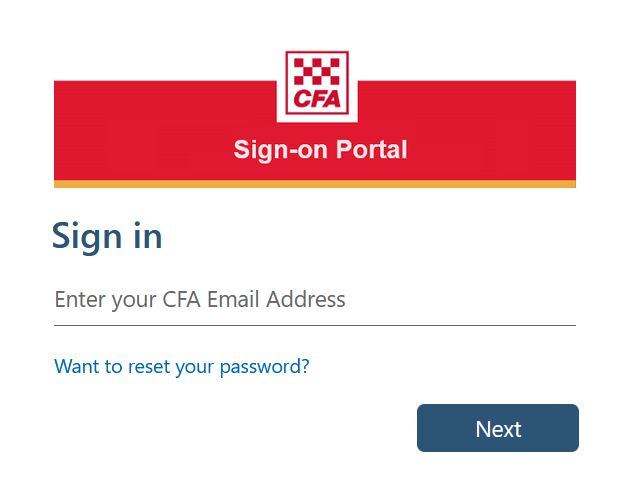
2. Enter your username or email address as prompted.
3. Click on the Next button.
4. You will then be redirected to the Entra ID
Enter Password dialog.
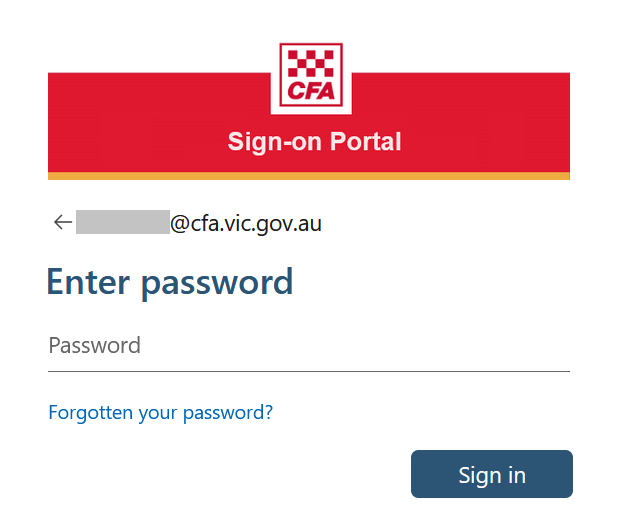
5. Enter your current password for your user account
6. When complete click on the Sign in button.
7. Once the credentials have been verified you will be redirected to the Sign-on Portal Verify your identity dialog for MFA enforcement.
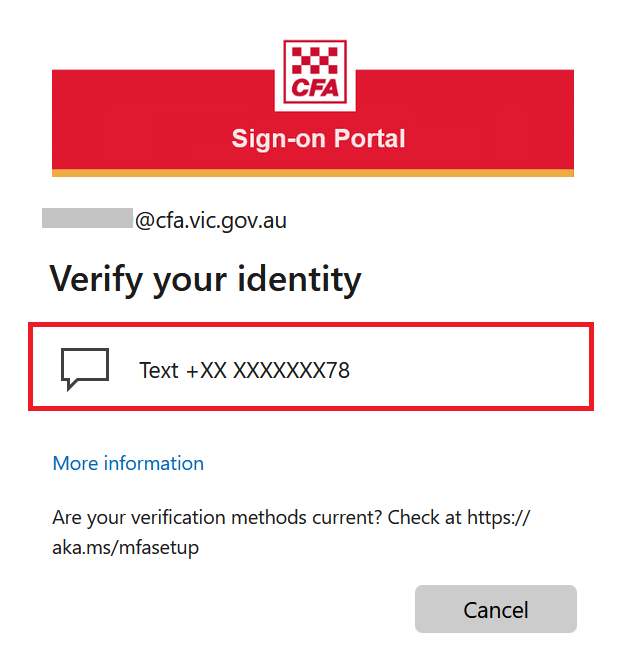
8. Complete the MFA authentication as prompted.
9. Once you have completed the MFA verification, you will be redirect to the application that you attempted to connect to initially and it will be automatically logged on as expected.
Multi-Factor Authentication (MFA) Setup Guides
How to set up Microsoft Authenticator App
The Microsoft Authenticator app helps you sign into your account as a secure MFA authentication method, and can be used in multiple ways:
- Multi-factor push verification. After you sign in using your username and password, you can either approve a notification sent to the App on your registered device.
- One-Time Passcode (OTP) generation. The App generates a temporary, random code every 30 seconds that you enter to authenticate when prompted.
This section steps you through the process of completing the initial registration of the Microsoft Authenticator App on your personal mobile device, for use for all subsequent MFA logon sessions where prompted.
Important Notes:
- Before you start, go to the Apple App Store or the Google Play Store and install Microsoft Authenticator onto your device if you haven't already.
- If you do not have any previously registered MFA authentication methods, you will be prompted to complete initial enrollment
1. On your computer launch a web browser and browse to your Microsoft Security Info page.
2. You will be presented with a default Microsoft Sign in dialog.
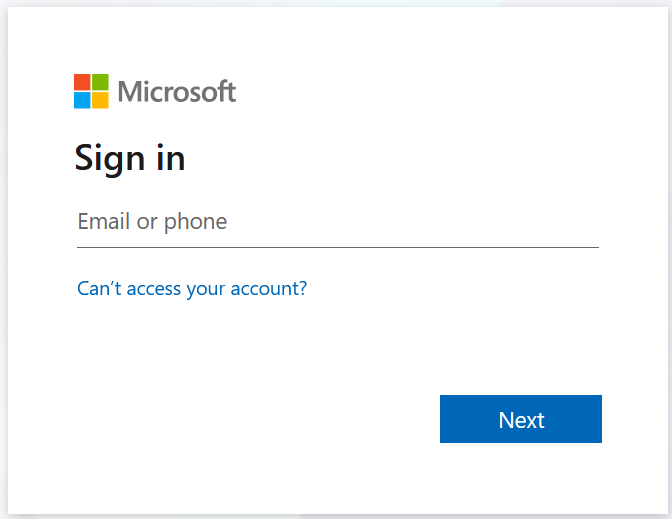
3. In the Email or phone field enter either of the following:
-
Your CFA Staff or CFA Members Email Address (if you have one)
e.g., j.bloggs@cfa.vic.gov.au / john.smith@members.cfa.vic.gov.au
If you don't have an active CFA assigned email address:
- For Staff, the default user logon name will be your user account name with the CFA domain suffix:
e.g. bloggs@cfa.vic.gov.au
- For Volunteers, the default user logon name will be your Volunteer Number with the CFA domain suffix:
e.g. 1234567@cfa.vic.gov.au
4. Once entered click on the Next button.
5. The browser will be redirected to the CFA Sign-on Password page.
6. Enter the password for your user account and then click on the Sign in button.
7. The CFA Sign-on Verify Your Identity dialog will be displayed.
8. Your currently registered obfuscated Mobile SMS number will be shown.
9 Click on the Text number link, and a verification code will be sent via SMS to the registered number.
10. The CFA Sign-on Enter Code dialog will be displayed.
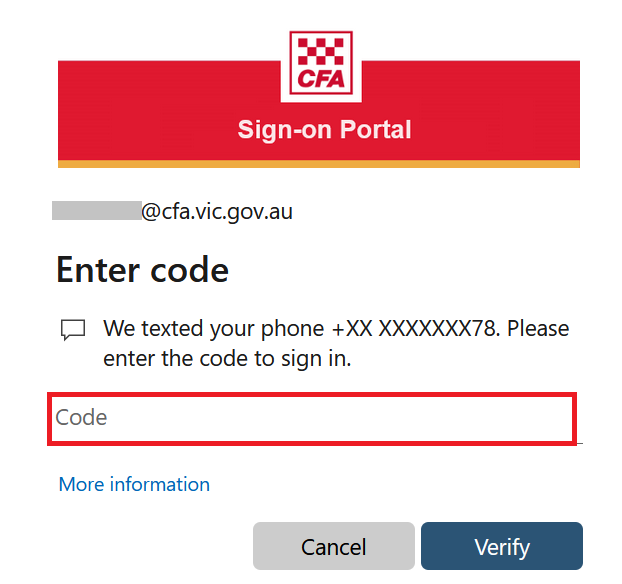
11. Enter the code you received in the SMS message into the verification Code field as prompted.
12. Click on the Verify button when complete.
13. Once verified, your Microsoft User Account Security Info page will be displayed.
14. Your Default sign-in method and any other registered Authentication Methods will be shown.
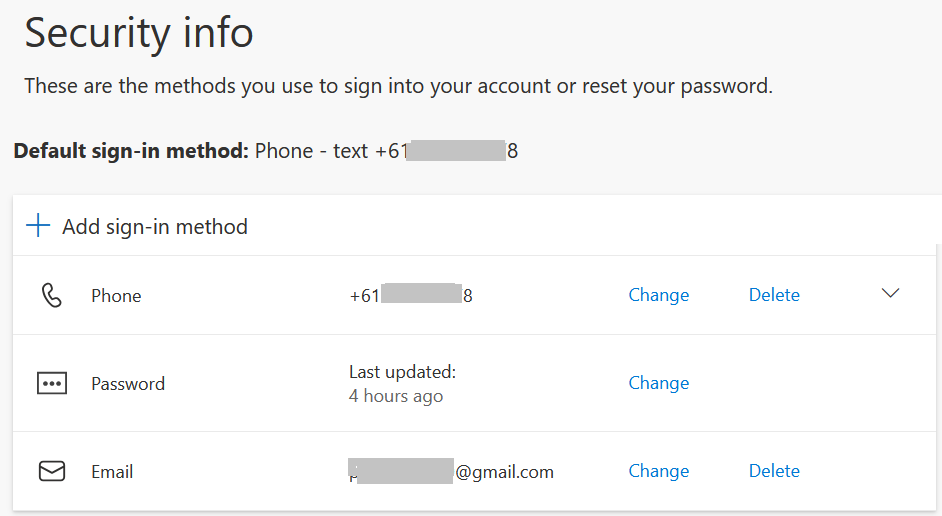
15. Click on the Add sign-in method menu option to start the registration of the Microsoft Authenticator App.
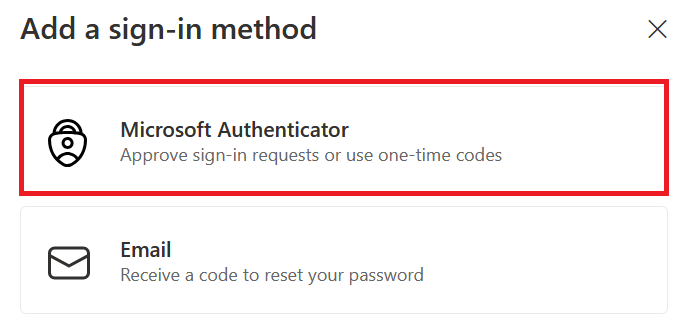
16. The Add a sign-in method dialog will be displayed.
17. Select the Microsoft Authenticator option from the presented list.
18. A dialog will prompt you to install the App on your mobile device. (Install now if you haven't already)
19. Click on the Next button.
20. The Set up your account in app dialog will be displayed.
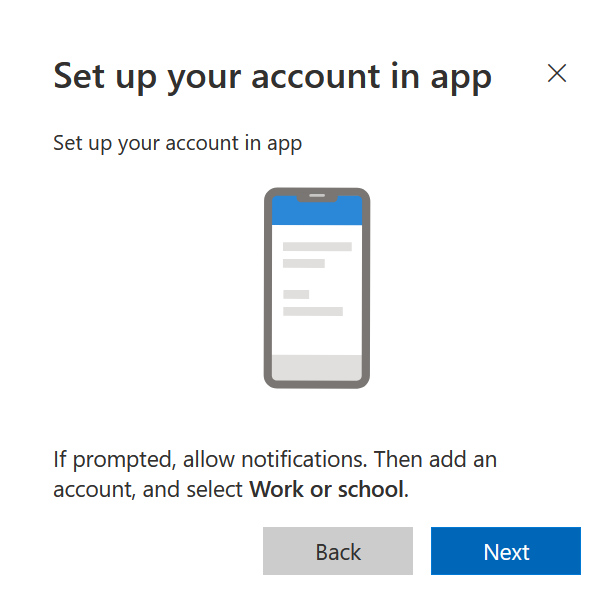
21. Click on the Next button.
22. The Scan the QR Code dialog will be displayed showing a validation QR code.
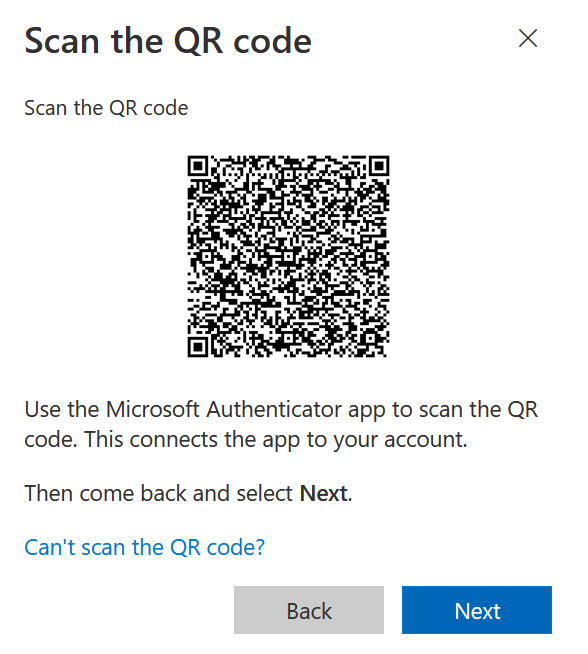
23. If your device cannot scan QR codes, follow the steps at the bottom of this section **.
24. Otherwise, open the Microsoft Authenticator app on your device.
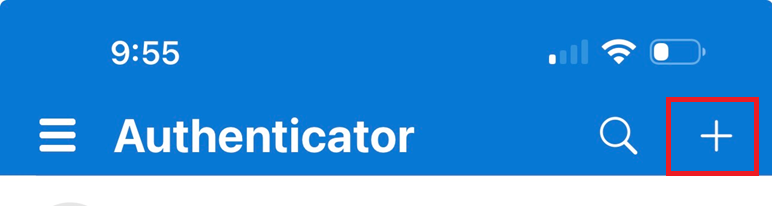
24. On the home page, click on the + to add a new account.
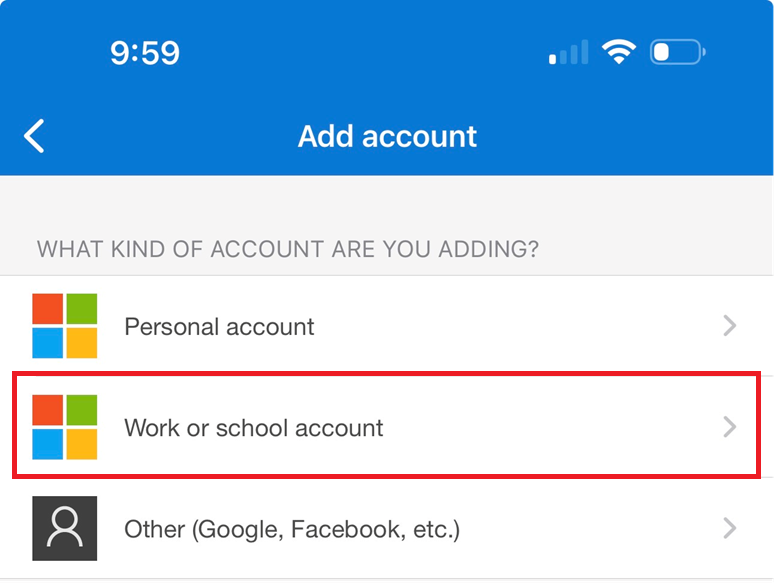
25. You will be asked to select the account type.
26. Select the Work or school account option.
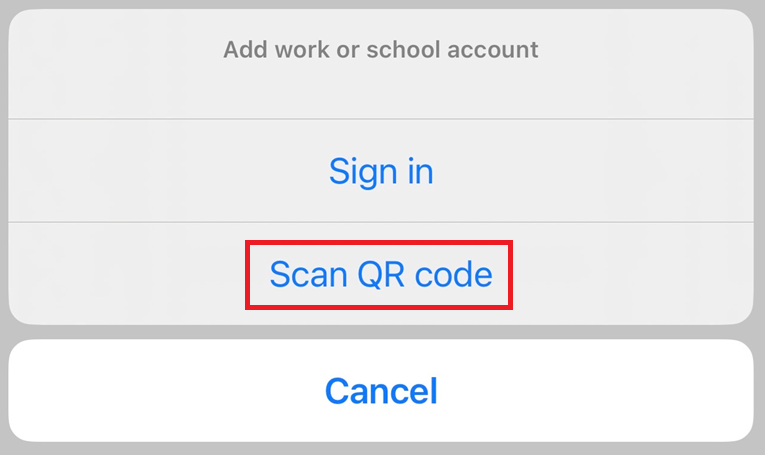
27. When prompted, select the Scan QR Code option from the list.
28. The Scan QR Code page on your device will activate your camera.
29. Hold the camera on your device to the generated QR validation code on the Microsoft web page.
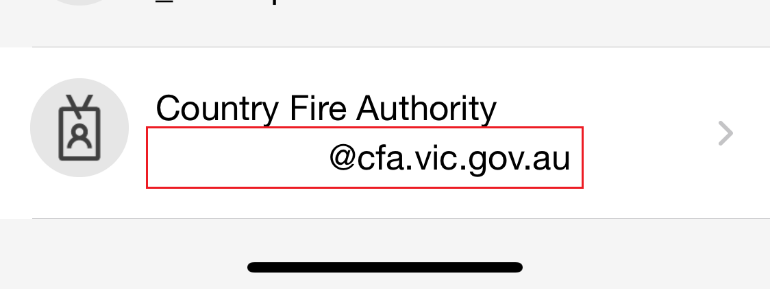
30. Once its scanned and validated successfully, your account will be added to the App and appear on the list.
31. Your web page will automatically be redirected to the Let’s try it out dialog.
32. An authentication validation number will also be displayed.
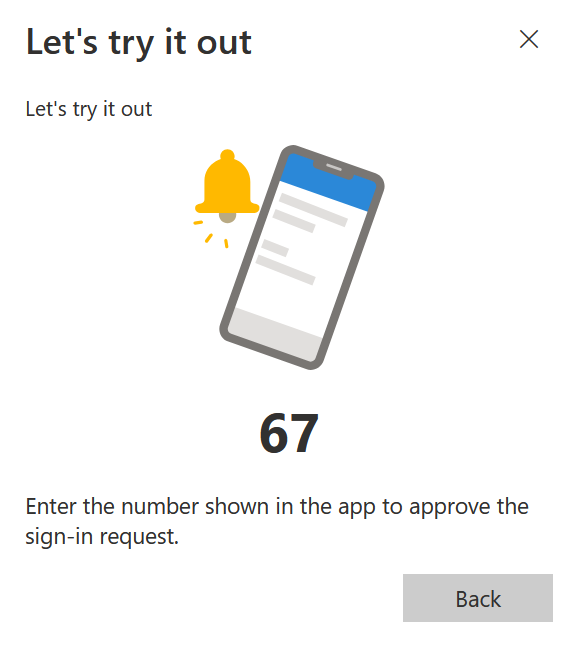
33. Enter this validation number into the App as prompted on your mobile device.
34. Once validated, the web page will confirm the configuration is complete.
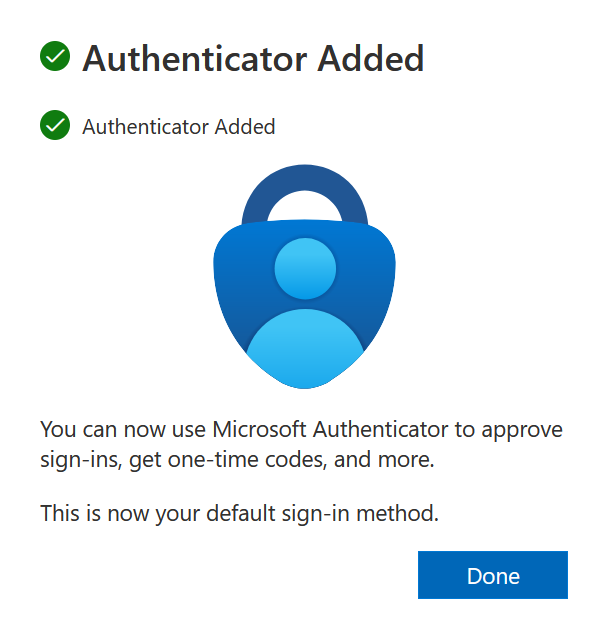
35. This method will now be added to your user account.
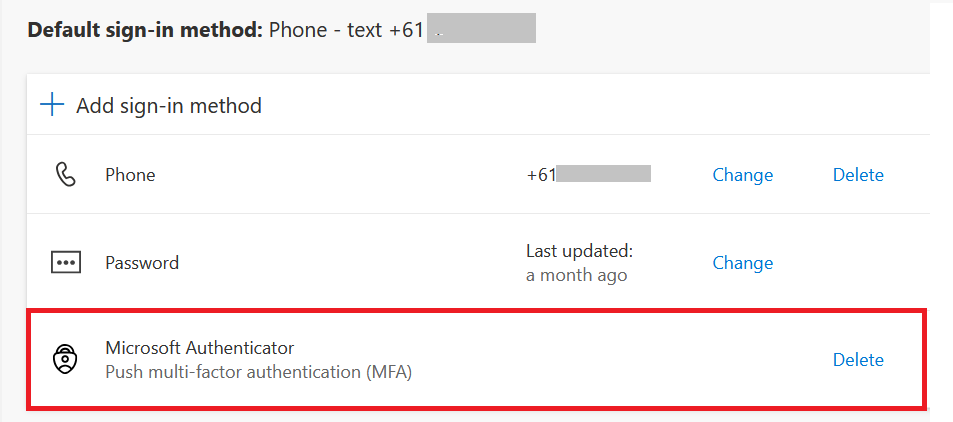
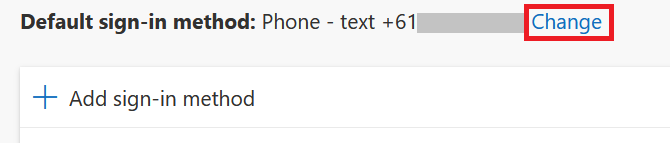
36. You can now set the Microsoft Authenticator app as your Default sign-in method if you choose.
37. Click on the Change link on the page.
38 Select the App based authentication - notification from the list of methods.
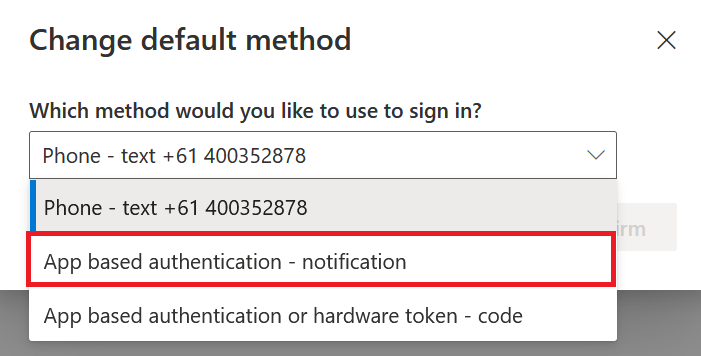
39. This will now be set as your Default sign-in method for all future MFA sign-in challenges.
40. You will still have the option to use any of your registered authentication methods, should one of them fail.
** If your device cannot scan QR codes:
a. Do not click Next in the browser yet.
b. In the web browser on your computer, click Can't scan the QR code?
c. In the field above the Next button, make a note of the string of numbers and letters.
d. On your mobile device, launch Microsoft Authenticator.
e. Tap Add account to add choose account type
c. Select Work or school account as the account type, and then tap Scan a QR code.
f. Click on Enter Code manually.
g. In the Code field, enter the string of numbers and letters you noted earlier.
h. Tap Add. You should see a message confirming that the secret was saved.
i. Return to the web browser and click Next.
j. In the Enter Code field, input the code displayed in the Microsoft Authenticator app on your mobile device.
k. Click Verify.
How to set up Google Authenticator
This section steps you through the process of completing the initial registration of the Google Authenticator App on your personal mobile device, for use for all subsequent Multi-Factor Authentication logon sessions where prompted.
Before you start, go to the Apple App Store or the Google Play Store and install Google Authenticator onto your device if you haven't already.
- Go to the Apple App Store or the Google Play Store and install Google Authenticator on your device.
- In the web browser on your computer: When signing in to any CFA protected resource, enter your credentials and then click Next.
- On the Setup your multi-factor authentication page, click Set up next to the first option.
- Select your device type, and then click Next.
- Perform the QR code scanning steps that apply to you
If your device can scan QR codes:
a. Do not click Next in the browser yet; instead, on your mobile device, launch Google Authenticator
b. Click on Add a code
c. Tap Scan a QR code.
d. Point your camera at the QR code displayed in the browser on your computer. The camera will automatically scan the QR code.
e. After scanning, go back to the web browser and click Next.
f. In the Enter Code field, enter the code shown in the Google Authenticator app on your mobile device.
g. Click Verify and click Continue
If your device cannot scan QR codes:
a. Do not click Next in the browser yet.
b. In the web browser on your computer, click Can't scan?
c. In the field above the Next button, make a note of the string of numbers and letters.
d. On your mobile device, launch Google Authenticator.
e. Click on Add a code and click Enter a set up key
f. In the Account field, enter your username.
g. In the Key field, enter the string of numbers and letters you noted earlier.
h. Tap Add. You should see a message confirming that the secret was saved.
i. Return to the web browser and click Next.
j. In the Enter Code field, input the code displayed in the Google Authenticator app on your mobile device.
k. Click Verify.
How to set up Mobile Phone SMS
For almost every Member, your user account will already be configured with a Default Mobile SMS authentication method.
There is no need to setup or register a Mobile Phone SMS again, unless you have replaced your current mobile device, or are a new members that
- New / Returning Members. You are a new or returning CFA member and have never signed up or registered an MFA authentication method before and want to use you mobile SMS.
- No Mobile Number in RMS. In this instance you will have no default pre-registered MFA authentication method for a mobile SMS.
This section steps you through the process of completing the initial registration of the Mobile Phone SMS method on your personal mobile device, for use for all subsequent MFA logon sessions where prompted.
1. On your computer launch a web browser and browse to your Microsoft Security Info page.
2. You will be presented with a default Microsoft Sign in dialog.
3. In the Email or phone field enter either of the following:
- Your CFA Staff or CFA Members Email Address (if you have one)
e.g., j.bloggs@cfa.vic.gov.au / john.smith@members.cfa.vic.gov.au
If you don't have an active CFA assigned email address:
- For Staff, the default user logon name will be your user account name with the CFA domain suffix:
e.g. bloggs@cfa.vic.gov.au
- For Volunteers, the default user logon name will be your Volunteer Number with the CFA domain suffix:
e.g. 1234567@cfa.vic.gov.au
4. Once entered click on the Next button.
5. The browser will be redirected to the CFA Sign-on Password page.
6. Enter the password for your user account and then click on the Sign in button.
7. The CFA Sign-on Let's keep your account secure dialog will be displayed.
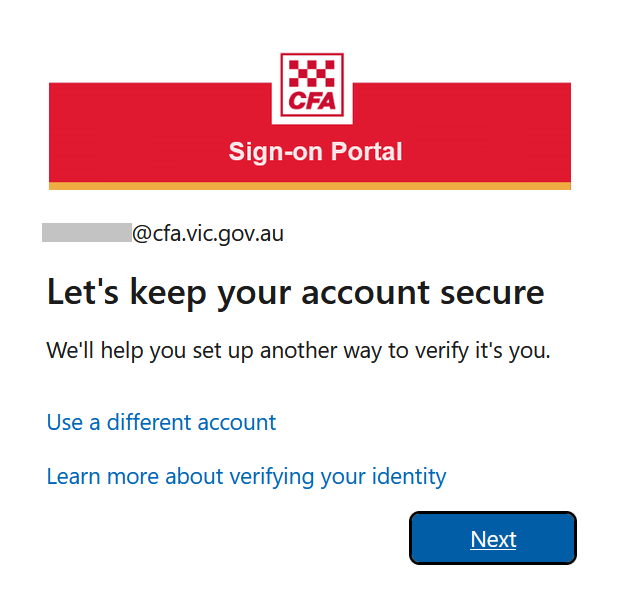
8. Click on the Next button.
9. The Install Microsoft Authenticator app dialog will be displayed.
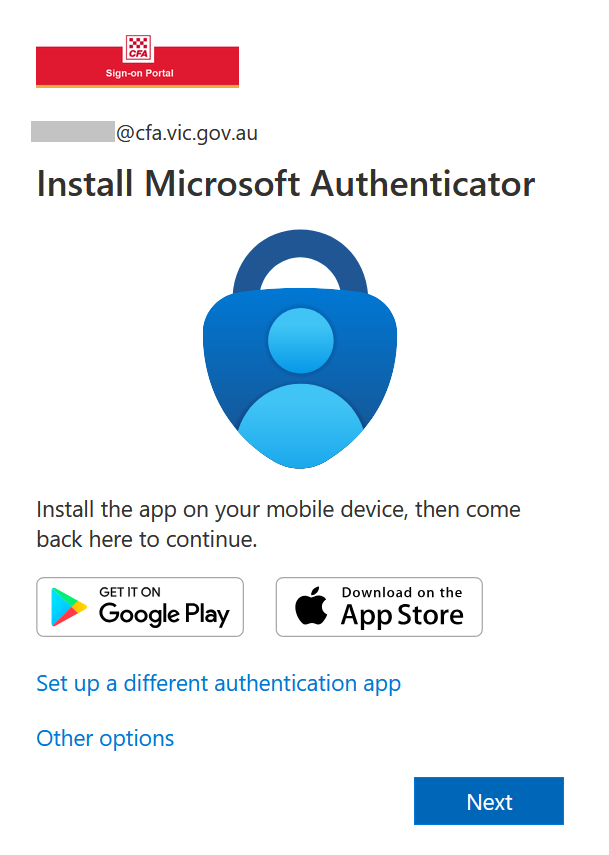
10. Click the Other options link on the page.
11. The Add a sign-in method dialog will be displayed.
12. Click on the Phone option as shown.
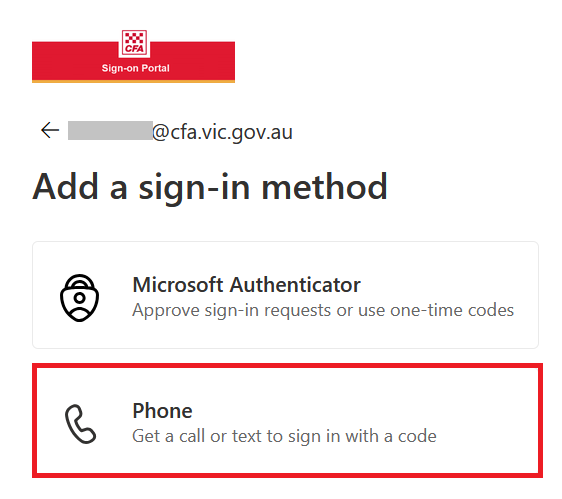
13. The Add your phone number dialog will be displayed.
14. In the Country Code field, select Australia from the list.
15. In the Phone Number field, enter your mobile phone number. (note: drop the leading zero).
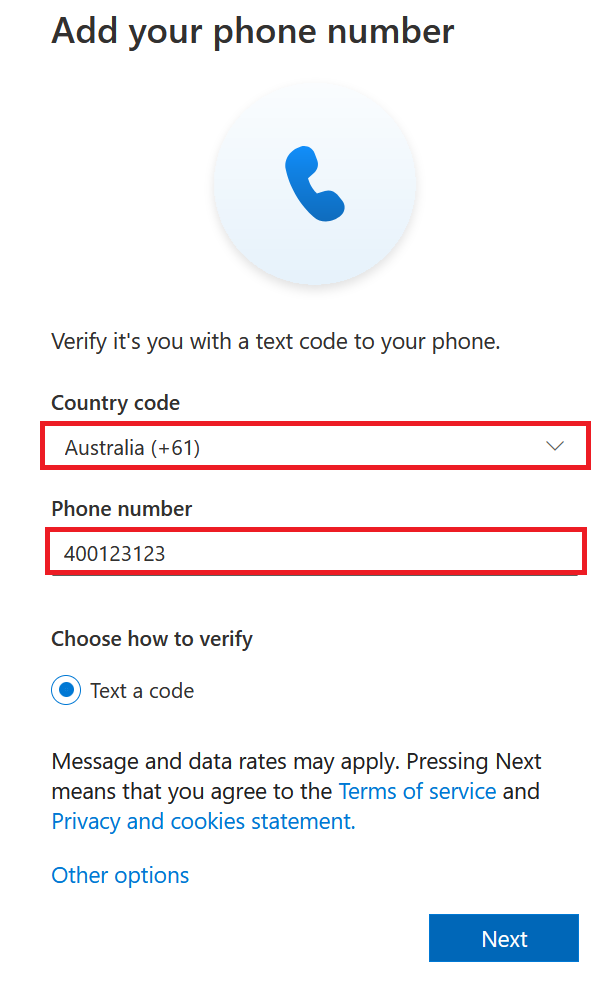
16. Once complete, click on the Next button.
17. The Let's prove your human dialog will be displayed.
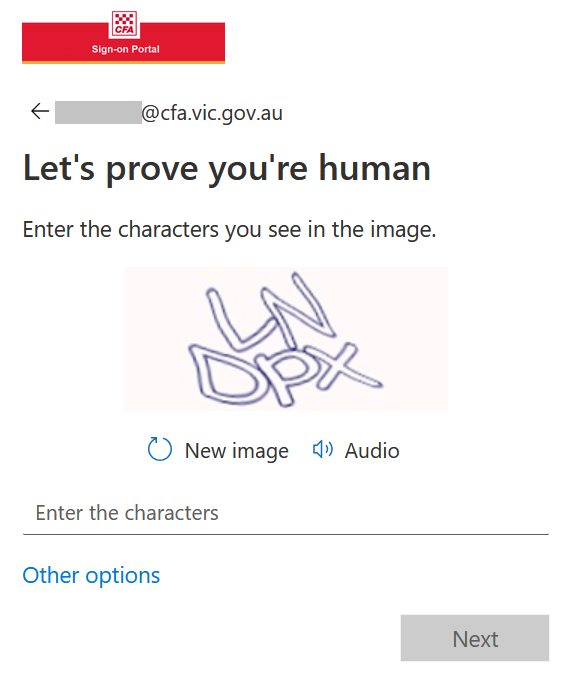
18. Complete the captcha as prompted, then click on the Next button.
19. A Mobile SMS will be sent to your device.
20. The Verify your phone number dialog will be displayed.
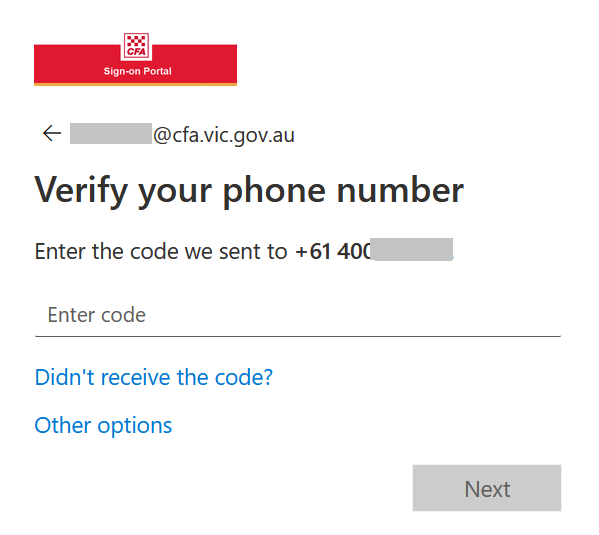
21. Enter the code you received via SMS in the Enter Code field where prompted.
22. Click on the Next button when complete.
23. The code will be verified and the Phone Number Added dialog will be displayed.
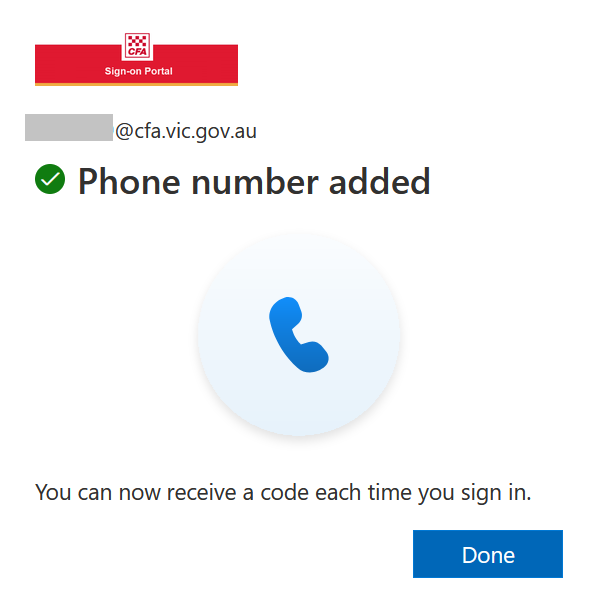
24. Click on the Done button.
25. Your Mobile SMS will now be registered as you MFA authentication mehtod for all future requests.
Multi-Factor Authentication (MFA) Usage Guides
How to complete MFA with your Mobile Phone SMS
Note: The Mobile Phone SMS authentication method is configured by default for every Member that has a registered Mobile number in RMS.
This section steps you through the process of completing a MFA session to Members Online, but the same process applies to any other CFA supported SSO application and web services.
1. Open a web browser, and then launch Members Online via the address https://www.members.cfa.vic.gov.au.
2. The CFA Sign-on Portal Sign In page will be displayed.
3. In the Enter your CFA Email Address field enter either of the following:
- Your CFA Staff or CFA Members Email Address (if you have one)
e.g., j.bloggs@cfa.vic.gov.au / john.smith@members.cfa.vic.gov.au
If you don't have an active CFA assigned email address:
- For Staff, the default user logon name will be your user account name with the CFA domain suffix:
e.g. bloggs@cfa.vic.gov.au
- For Volunteers, the default user logon name will be your Volunteer Number with the CFA domain suffix:
e.g. 1234567@cfa.vic.gov.au
4. Once entered click on the Next button.
5. The browser will be redirected to the CFA Sign-on Portal Enter Password page.
6. Enter your user account password in the Password field.
7. Once complete click on the Sign in button.
8. Once authenticated, the Sign-on Portal Verify your Identity MFA security dialog will be displayed.
9. The obfuscated mobile number that is registered as your default Mobile SMS Authentication Method will be listed.
10. Click on the Text number link.
11. A verification code will be sent via SMS to your registered mobile device.
12. The Sign-On Portal Enter Code dialog will be displayed.
13. Enter the code you received in the SMS message into the verification Code field as prompted.
14. Click on the Verify button when complete.
15. Once the code is verified the page will redirect, and the Members Online site will be displayed
How to complete MFA with the Microsoft Authenticator (Push Notification)
The Microsoft Authenticator app helps you sign into your account as a secure MFA authentication method, and can be used in multiple ways:
- Multi-factor push verification. After you sign in using your username and password, you can either approve a notification sent to the App on your registered device.
- One-Time Passcode (OTP) generation. The App generates a temporary, random code every 30 seconds that you enter to authenticate when prompted.
This section steps you through the process of completing a MFA Push Verification session to Members Online, but the same process applies to any other CFA supported SSO application and web services.
1. Open a web browser, and then launch Members Online via the address https://www.members.cfa.vic.gov.au.
2. The CFA Sign-on Portal Sign In page will be displayed.
3. In the Enter your CFA Email Address field enter either of the following:
- Your CFA Staff or CFA Members Email Address (if you have one)
e.g., j.bloggs@cfa.vic.gov.au / john.smith@members.cfa.vic.gov.au
If you don't have an active CFA assigned email address:
- For Staff, the default user logon name will be your user account name with the CFA domain suffix:
e.g. bloggs@cfa.vic.gov.au
- For Volunteers, the default user logon name will be your Volunteer Number with the CFA domain suffix:
e.g. 1234567@cfa.vic.gov.au
4. Once entered click on the Next button.
5. The browser will be redirected to the CFA Sign-on Portal Enter Password page.
6. Enter your user account password in the Password field.
7. Once complete click on the Sign in button.
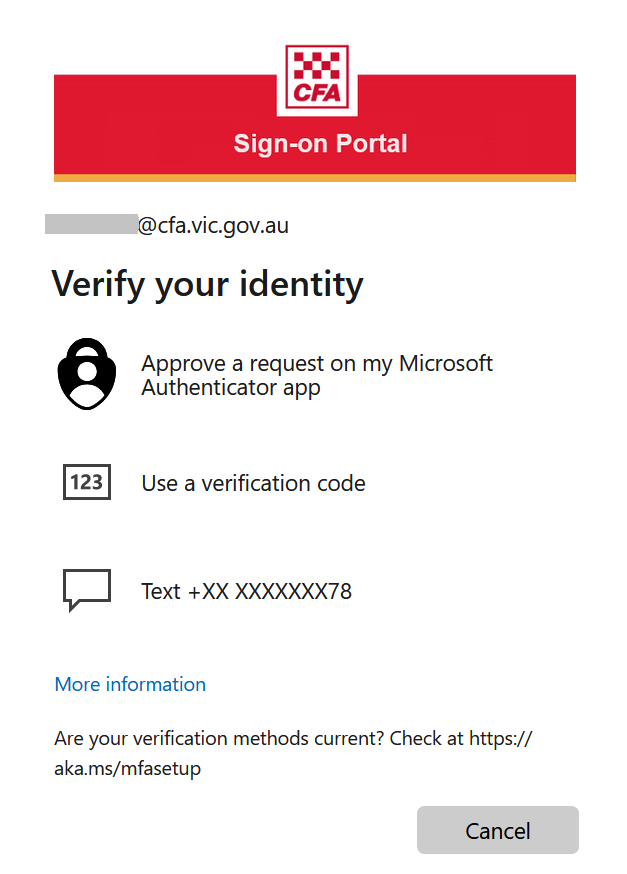
8. Once authenticated, the Sign-on Portal Verify your Identity MFA security dialog will be displayed.
9. The options listed may vary defending on what MFA authentication methods you have registered.
10. Click on Approve a request on my Microsoft Authenticator app option to proceed.
11. A sign in request will be sent to your App on your registered device.
12. The Approve sign in request dialog will be displayed.
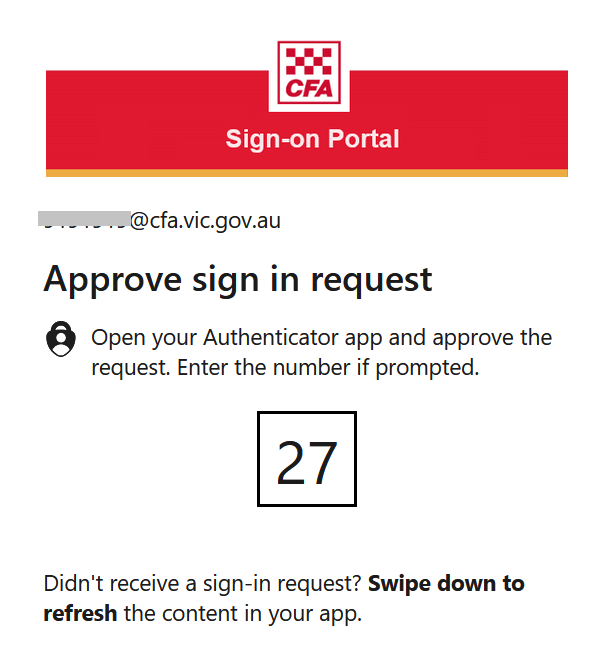
13. Take a note of this request number.
14. A prompt will be sent to your Microsoft Authenticator App on your mobile device.
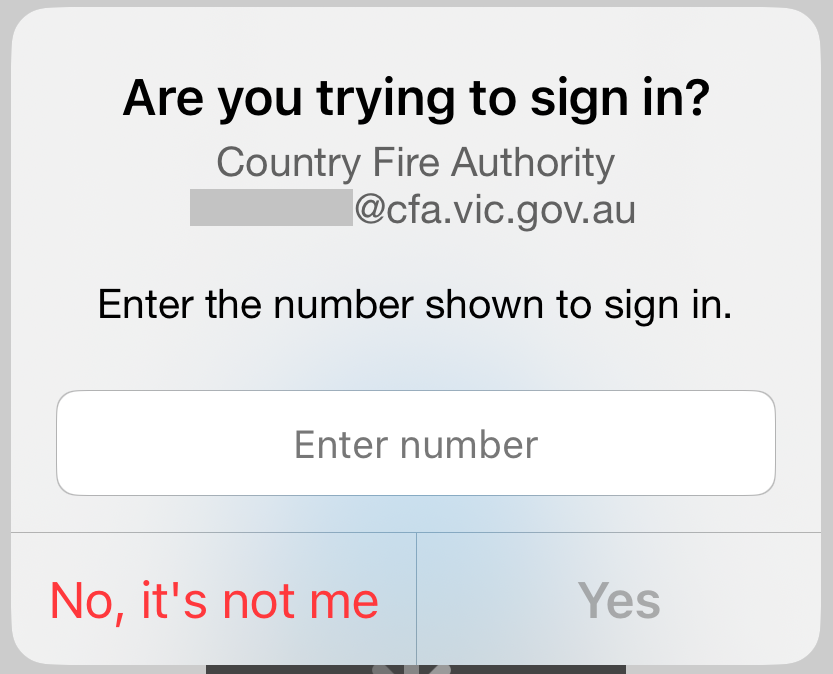
15. Enter the request number from the previous dialog into the field shown in the Microsoft Authenticator App on your mobile device.
16. Click on the Yes option when complete.
17. Once the number is verified the page will redirect, and the Members Online site will be displayed.
How to complete MFA with the Microsoft Authenticator (One-Time Passcode)
The Microsoft Authenticator app helps you sign into your account as a secure MFA authentication method, and can be used in multiple ways:
- Multi-factor push verification. After you sign in using your username and password, you can either approve a notification sent to the App on your registered device.
- One-Time Passcode (OTP) generation. The App generates a temporary, random code every 30 seconds that you enter to authenticate when prompted.
This section steps you through the process of completing a MFA OTP session to Members Online, but the same process applies to any other CFA supported SSO application and web services.
1. Open a web browser, and then launch Members Online via the address https://www.members.cfa.vic.gov.au.
2. The CFA Sign-on Portal Sign In page will be displayed.
3. In the Enter your CFA Email Address field enter either of the following:
- Your CFA Staff or CFA Members Email Address (if you have one)
e.g., j.bloggs@cfa.vic.gov.au / john.smith@members.cfa.vic.gov.au
If you don't have an active CFA assigned email address:
- For Staff, the default user logon name will be your user account name with the CFA domain suffix:
e.g. bloggs@cfa.vic.gov.au
- For Volunteers, the default user logon name will be your Volunteer Number with the CFA domain suffix:
e.g. 1234567@cfa.vic.gov.au
4. Once entered click on the Next button.
5. The browser will be redirected to the CFA Sign-on Portal Enter Password page.
6. Enter your user account password in the Password field.
7. Once complete click on the Sign in button.
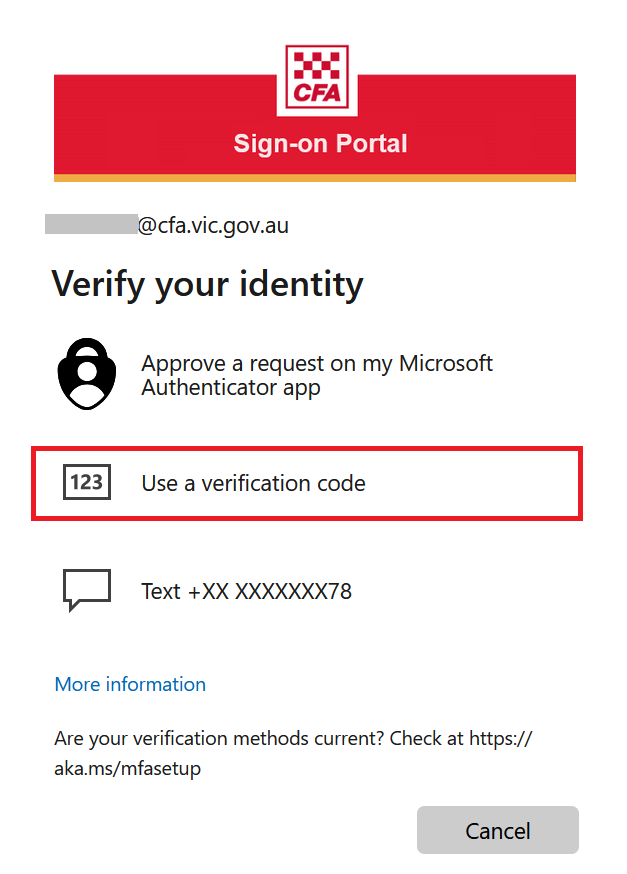
8. Once authenticated, the Sign-on Portal Verify your Identity MFA security dialog will be displayed.
9. The options listed may vary defending on what MFA authentication methods you have registered.
10. Click on Use a verification code option to proceed.
11. A sign in request will be sent to your Authenticator App on your registered mobile device.
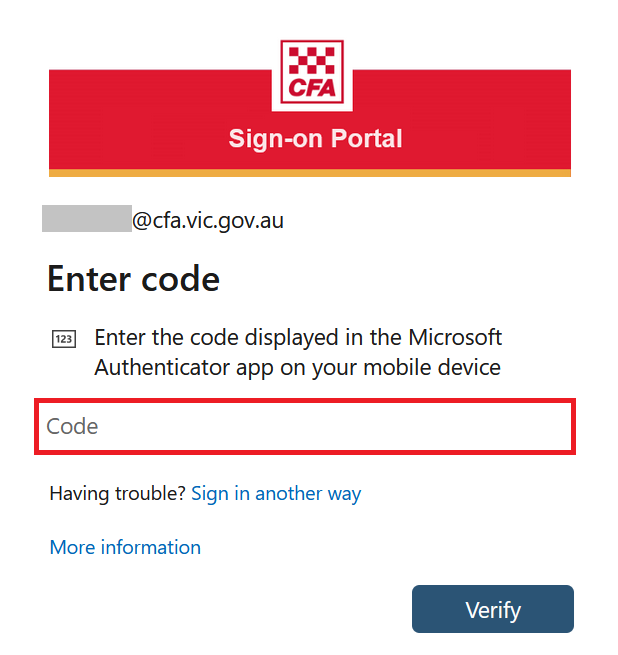
12. The Enter Code dialog will be displayed.
13. Open up the Microsoft Authenticator App on your mobile device.
14. Select your User Account that you have already configured.
15. Your user account will be shown on your Microsoft Authenticator App on your mobile device.
16. A One-Time Password Code 6-digit number will be displayed (on a 30 second timer)
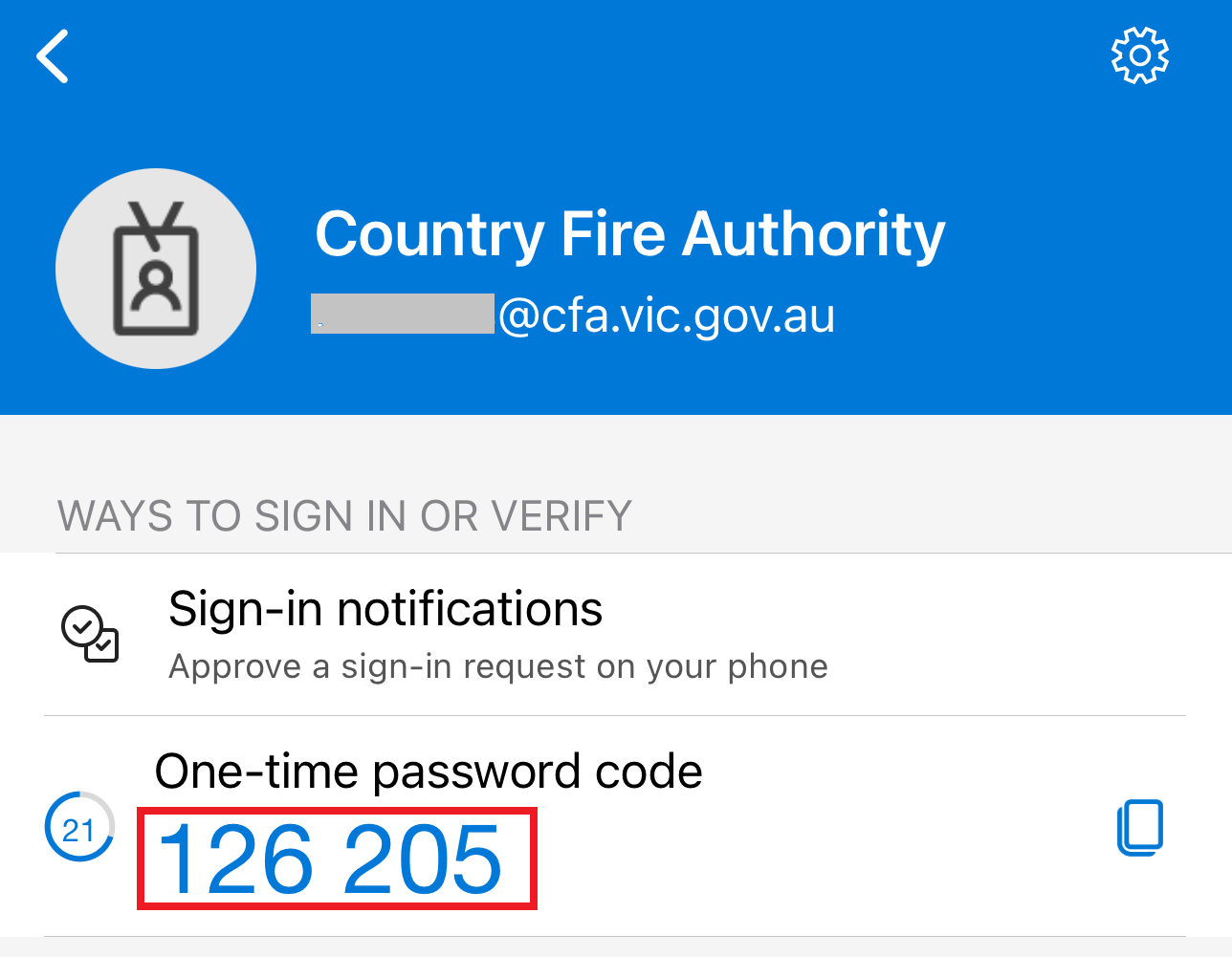
17. Enter this One-Time Password Code into the Enter Code dialog.
18. Click on Verify when complete.
19. Once the code is verified the page will redirect, and the Members Online site will be displayed.
hide
What is my username and password for CFA Sign-In?
Your username and password are your existing credentials that you use to sign in to the current CFA environment. With these credentials you can access all the CFA apps you are authorised for.
If you've forgotten your password, select the Want to reset your password? link at the bottom of the Sign-in page.
What MFA methods does CFA support?
CFA supports various MFA methods, including:
- Mobile SMS
- Microsoft Authenticator
- Third-party apps such as Google Authenticator and 1Password
How can I change my password?
Password changes are handled through the current Self-Service Password Reset (SSPR) process. For more details, please refer to this link
How do I unlock my account?
If you’re locked out of your CFA account but still remember your password, select "Unlock Account?" at the bottom of the sign-in page. You may receive a prompt to re-authenticate with a password and other security methods configured. Contact ICT Service Desk in case of any issues.
Will I need to re-enroll in MFA if I reset my password?
No, resetting your password doesn’t require re-enrolling in MFA, unless MFA has been reset or removed from your account.
Can I register multiple devices for MFA?
Yes, you can register multiple mobile phones for MFA. It is recommended to do so to ensure access in case of device loss.
How do you troubleshoot when your phone freezes on the Enrolling Your Device screen?
If you get
stuck in a loop when attempting to register using SMS, Email, or QR code, and
you are not getting any code or push notifications, your device is not enrolled
correctly. You must reset MFA from your account, and then set up the MFA again.
Can I install Authenticator apps on multiple devices?
Yes, you can, and it's a good idea in case you lose or misplace a device. Each device must be set up during registration. Notifications for sign-in approval will appear on all registered devices, but you only need to respond on one.
Does registering my mobile device give CFA access to my device?
No, it does not. Registering a device gives your device access to CFA authentication services, it does not grant nor provide CFA any access to your device.
Why do Authenticator apps ask to enable access to my device camera during setup?
The authenticator app prompts for camera access during initial setup to scan a QR code for device verification. Depending on your device, you may not see this prompt. Once configured, camera access is no longer required and can be disabled after registration.
Do I need internet or network access to use verification codes after initial registration?
No, after initial registration, the codes work without internet or phone service. Authenticator apps stop running when closed, so it won’t drain your battery.
I don’t have a smartphone. Can I still use MFA?
Yes, you can. If you don’t have a smartphone, you can receive MFA codes via SMS on a regular mobile phone.
Can I add more than one authentication method to my user account?
Yes, and in most instances, it is recommended to install both the Authenticator app and a Mobile Phone authentication method. Adding the Mobile Phone authentication method is advised for backup and to facilitate phone swaps.
How do I change my authentication method?
Follow these steps to update your MFA method:
- To Follow.
Will Supplementary Alerting System (SAS) Generic/Guest accounts that are not CFA accounts require CFA MFA?
No, CFA MFA is only required for logons in the @cfa.vic.gov.au and @members.cfa.vic.gov.au domains. Personal emails such as @gmail.com do not access CFA systems and will not be challenged for MFA.
Who do I contact if I have issues with my account?
In case of any issues, contact ICT Service Desk or Cybersecurity at cybersecurity@cfa.vic.gov.au.
hide
Page last updated: Monday, 13 July 2026 3:30:32 PM